This article explains how to find ready-made lessons from the Simulations Labs library and add them to your organization’s library so you can reuse them when building training courses.
Before you start
Make sure you have access to the Manager Area and permission to manage lessons and courses.
How it works
The process is simple:
Browse Library → Search → Preview → Approve → Add to your Library → Use in Courses
1. Browse the Lesson Library
From the Lessons section, click Browse Library to explore the available lessons.
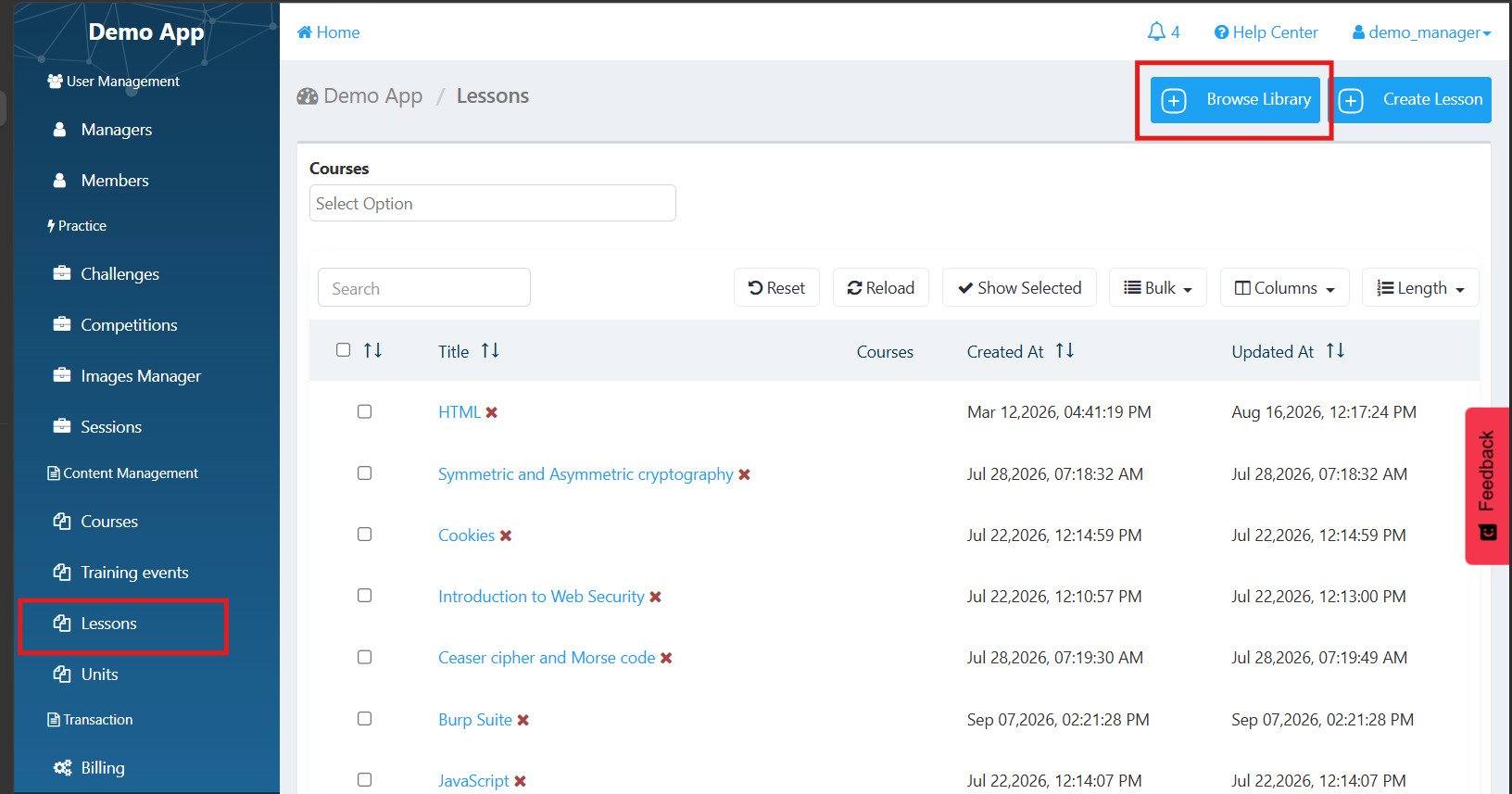
2. Search for a lesson
Use the search bar to find lessons relevant to your training needs.
You can review the available lessons and choose the ones you want to use.
3. Preview the lesson
Click on a lesson to preview its content before adding it to your library.
Use the preview to make sure the lesson is relevant to your training requirements.
4. Approve the lesson
Once you have found a lesson you want to use, click Approve.
The lesson will be added to your organization's lesson library.
5. Use the lesson in a course
After the lesson has been added to your library, you can use it when creating a course.
Add the lesson to a course unit and combine it with other lessons to build your training program.
Why use lessons from the library?
Using ready-made lessons can help you:
- Quickly find relevant training content
- Reduce the time needed to create training content
- Build courses using existing lessons from the Simulations Labs library
Was this article helpful?
That’s Great!
Thank you for your feedback
Sorry! We couldn't be helpful
Thank you for your feedback
Feedback sent
We appreciate your effort and will try to fix the article