Once your competition is launched, you can track participant activity, monitor team performance, review submissions, and access competition statistics directly from the Manager Area.
This guide explains the different sections of the competition dashboard and how to use them to monitor your competition.
Accessing Your Competition Dashboard
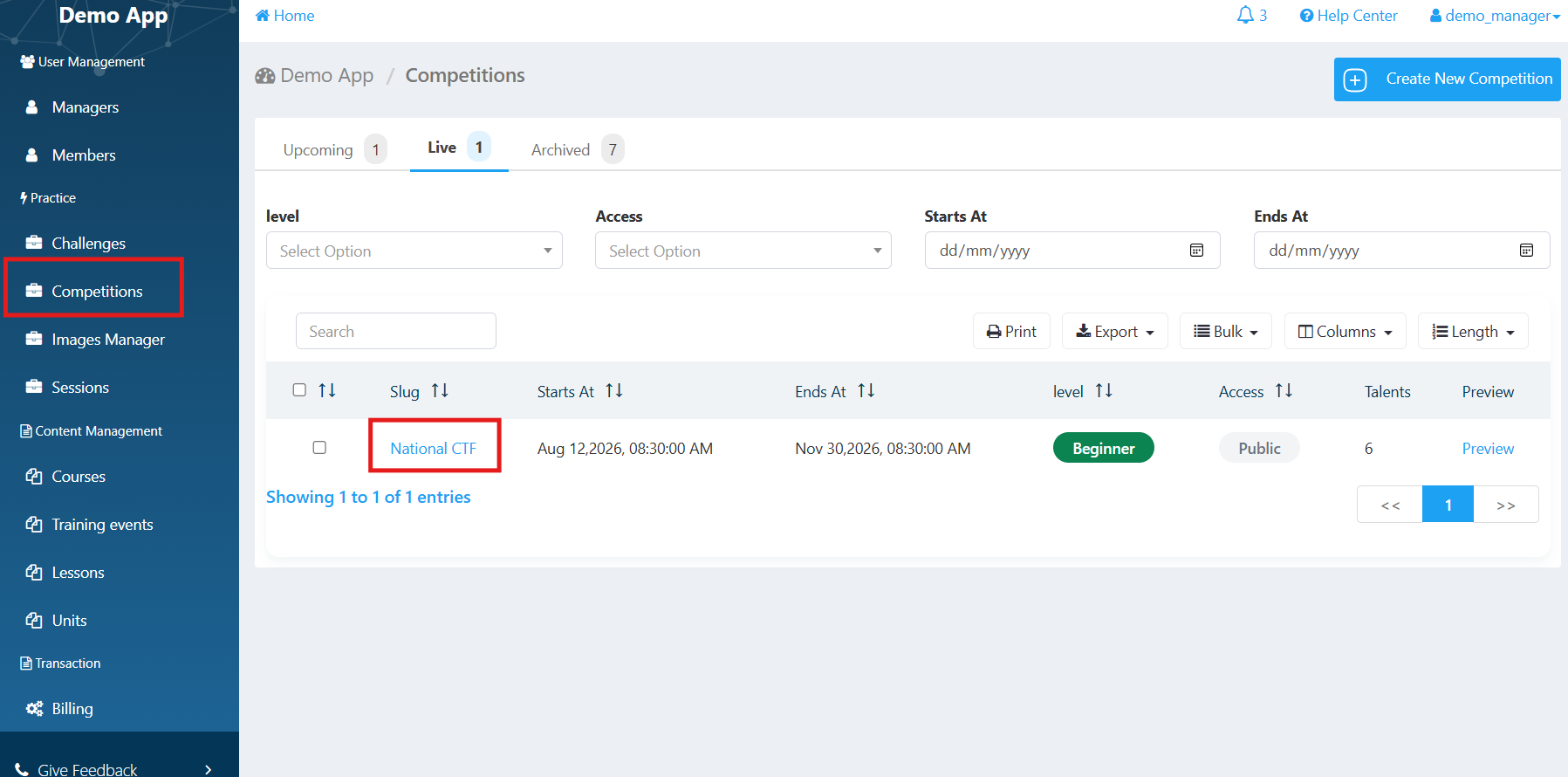
From the Manager Area, navigate to Practice → Competitions and open the competition you want to monitor.
Inside the competition dashboard, you'll find several tabs that provide an overview of your competition and its participants.
Preview
The Preview tab displays your competition details as configured. You can review:
Competition description.
Thumbnail and cover photo.
Competition prizes.
Other competition information and details.
This allows you to review how your competition is presented to participants.
Statistics
The Statistics tab provides insights into competition activity and participant performance.
First Solvers
Discover which teams were the first to solve specific challenges. This helps you identify early breakthroughs and recognize top-performing teams.
Team Statistics Overview
Review each team's/member's performance, including:
Challenges Solved: The challenges successfully completed by the team.
Correct Attempts: The number of correct submissions.
Wrong Attempts: The number of incorrect submissions.
To explore performance in more detail, click View Statistics next to the relevant participant or team. A pop-up will display a breakdown of their results.
Challenge Category Performance
Explore performance across different challenge categories to understand which areas participants performed well in and which categories presented more difficulty.
The Statistics tab also provides additional insights into competition activity and performance.
Submissions
The Submissions tab lists all submissions made by participants during the competition.
For each submission, you can view:
Participant/Team: The participant or team that made the submission.
Challenge: The challenge they attempted.
Result: Whether the submission was correct or incorrect.
Timestamp: When the submission was made.
Deleting a Submission
You can delete a submission by clicking the trash icon next to it.
Important: Deleting a correct submission also removes the points earned for that challenge from the participant's or team's score. This can be useful when handling suspected cheating or misconduct.
Teams Leaderboard / Members Scoreboard
The Teams tab provides an overview of all teams registered in your competition.
You can view:
Team/members rankings based on accumulated points.
Team members and their designated team leader. (Teams Competitions)
Challenges solved by each team/member.
Team/member progress throughout the competition.
Use this section to follow team participation and compare their performance.
Talents (Teams Competitions)
The Talents tab allows you to browse all participants enrolled in your competition.
You can access individual participant profiles to explore their skills, achievements, and other competitions they have joined.
This gives you a better understanding of the participants taking part in your competition.
Was this article helpful?
That’s Great!
Thank you for your feedback
Sorry! We couldn't be helpful
Thank you for your feedback
Feedback sent
We appreciate your effort and will try to fix the article