Before adding a challenge to a competition or training event, you can preview and test it to ensure everything works as expected.
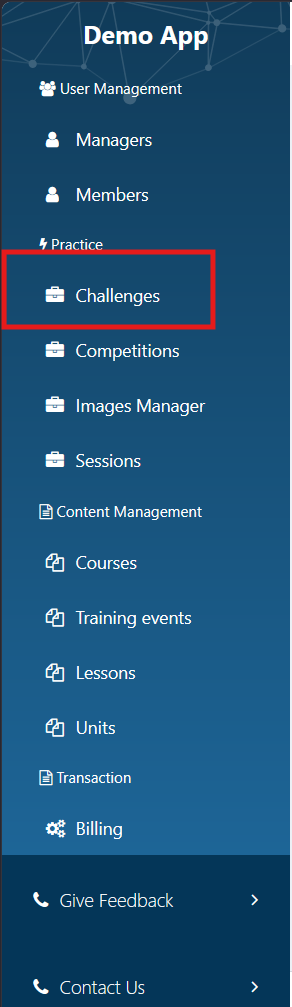
Step 1: Open the Challenges Section
From the left navigation menu, click Challenges to view all of your created challenges.
Step 2: Open the Challenge Preview
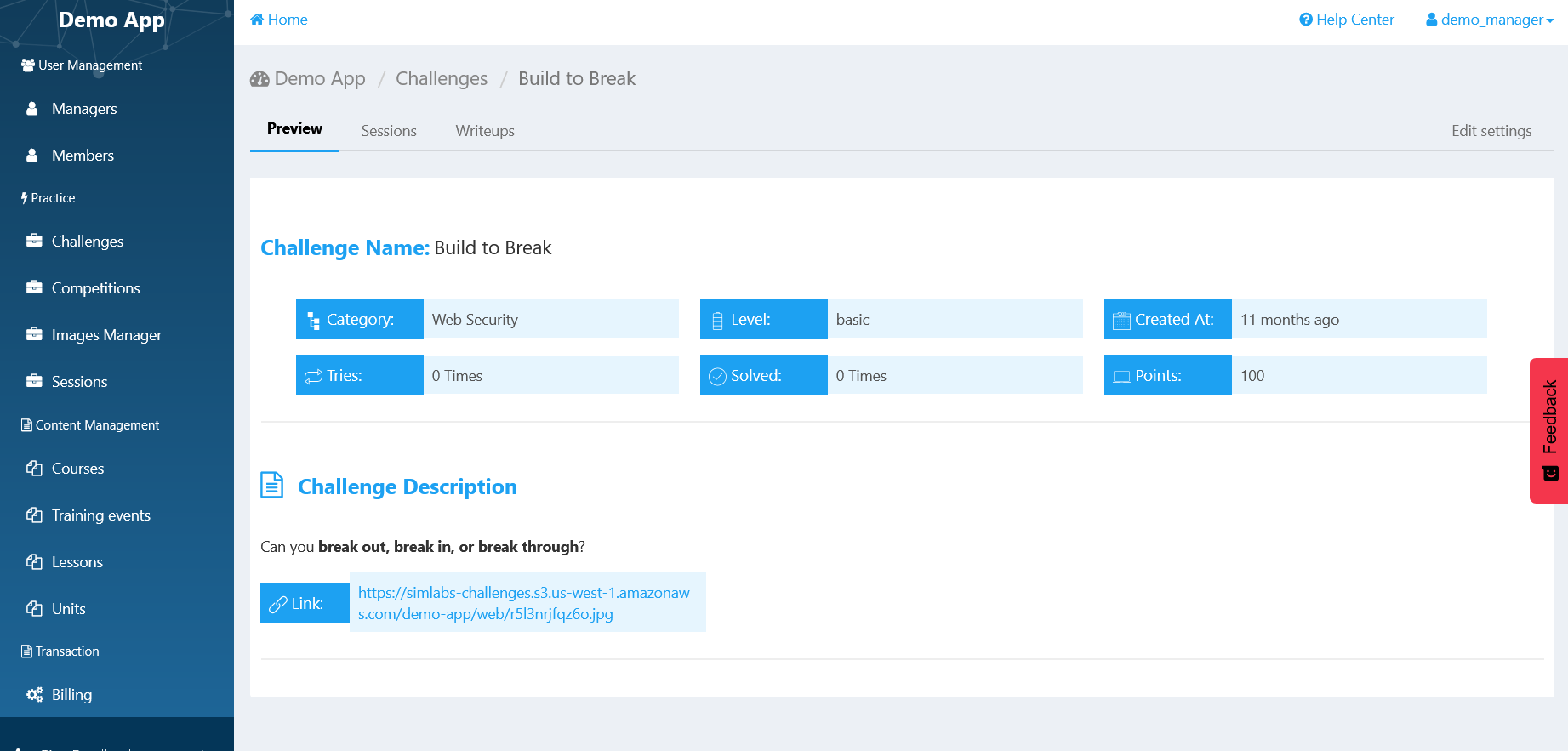
Select the challenge you want to test. This will open the Challenge Preview page, where you can review and interact with the challenge based on its type.
What You'll See
Text-Based Challenges
For text-based challenges, the preview page displays the challenge description exactly as participants will see it.
Downloadable Challenges
For challenges that include downloadable files, you'll see:
- The challenge description
- The attached file(s) available for download
You can download the files to verify that they are correct and complete.
Docker-Based Challenges
Docker-based challenges require a container to be built before they can be tested.
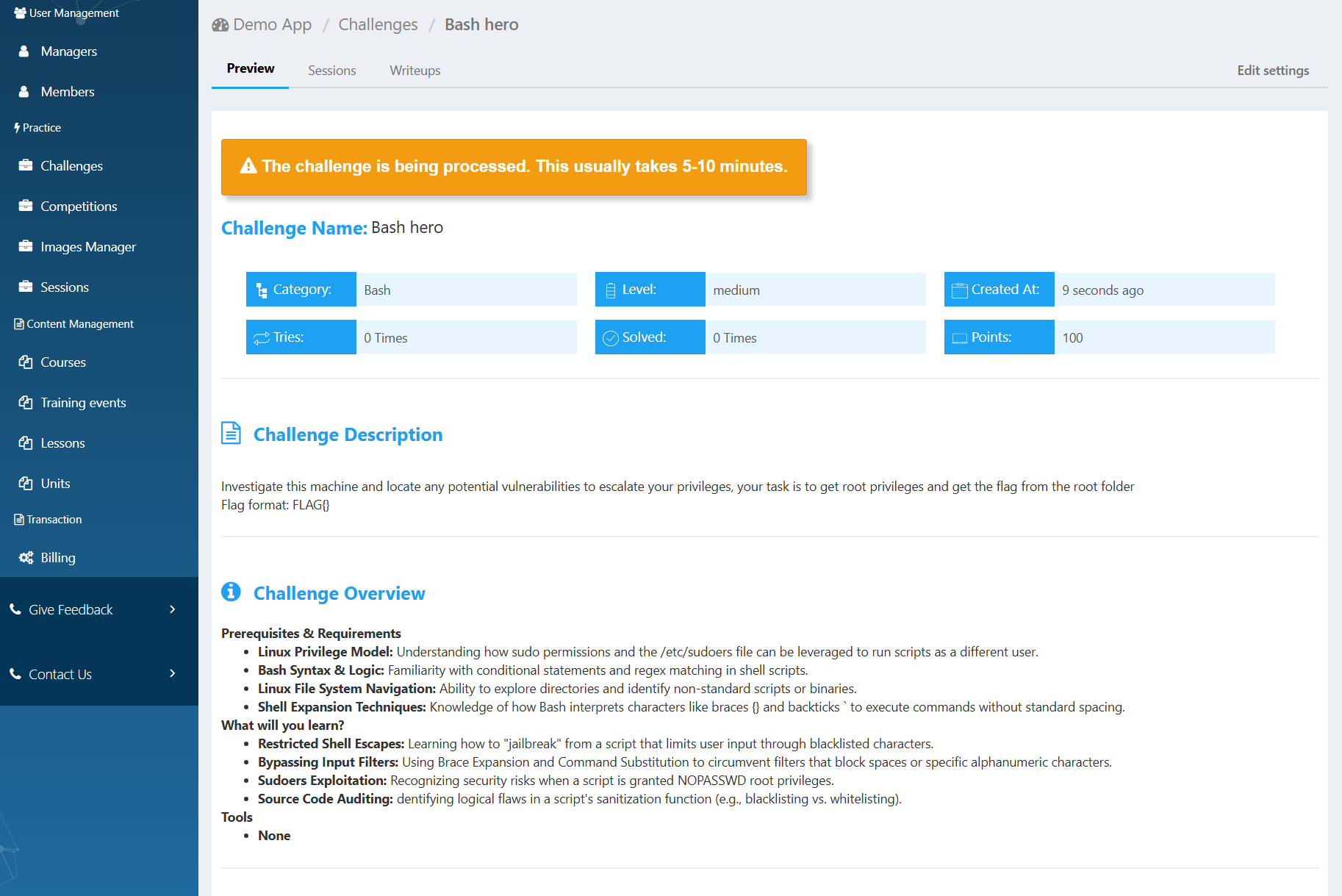
-> Container is Processing
If you have just uploaded the Docker challenge, the container may still be processing. In this case, you'll see a processing message.
Container creation typically takes 5–10 minutes to complete.
-> Container is Ready
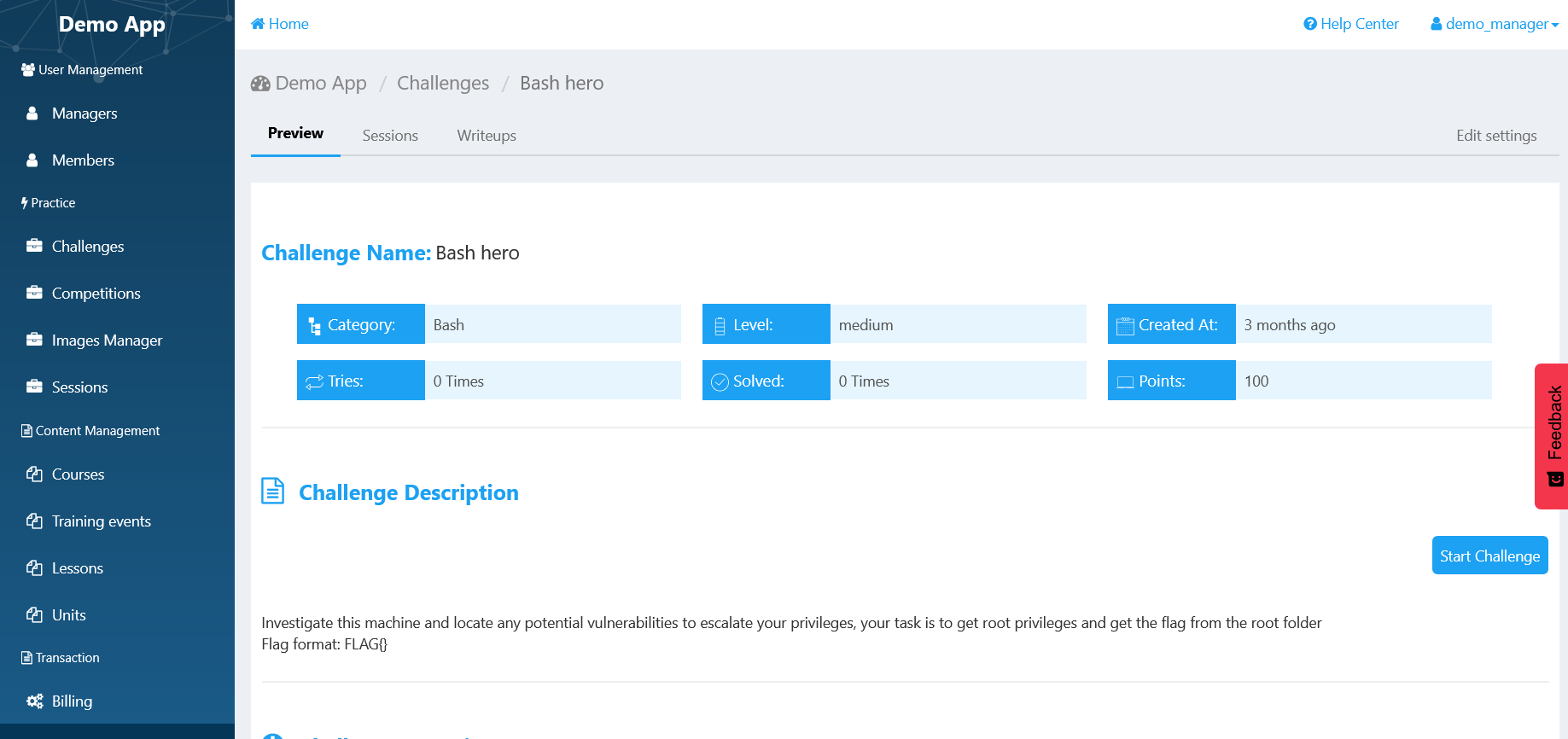
Once the container has been built successfully, the Start Challenge button will appear.
Click Start Challenge to launch the environment and test the challenge exactly as participants will experience it.
-> Container Build Failed
If the container build fails, the next steps depend on how the challenge was created:
- If you created the Docker challenge manually: Follow the Troubleshooting Docker Container Help Center article to identify and resolve common issues.
- If the challenge was created using Simulations Copilot (Build with AI): Contact our support team and include the challenge name in your email. Our team will investigate the issue and help resolve it.
Was this article helpful?
That’s Great!
Thank you for your feedback
Sorry! We couldn't be helpful
Thank you for your feedback
Feedback sent
We appreciate your effort and will try to fix the article